![petscreening_logo_navy_new.png]](https://billing.petscreening.com/hs-fs/hubfs/petscreening_logo_navy_new.png?height=50&name=petscreening_logo_navy_new.png)
1. Contact your Yardi Account Manager and ask to have the PetScreening vendor add-on package
loaded to your interface database
PetScreening doesn't automatically show in your database of vendor interfaces until ILS Guest Card PIv18,so
your Yardi Account Manager will need to add the PetScreening vendor package for you all. Once PetScreening is
visible in your database, you can access PetScreening'sinterface in the ILS Guest Card settings: Interfaces >
Configuration > Review Interface Vendors > ILS Guest Card > PetScreening
2. Create a property list named ‘PetScreening list’. Include all properties that will use PetScreening.
3. Use Bulk Property interface configuration to add PetScreening to all properties in PetScreening List.
You can access this function by going to: Interfaces > Configuration > Bulk Property Interface
Configuration. Alternatively you can manually add PetScreening to all properties: Please review property →
Click on Functions → Interface Configuration → ILS Guest Card and make sure PetScreening isselected
4. If you use an existing ILS Interface security group, verify the security group has the following
permissions. You can check the permissions by going to Administration Menu and click on Set
Permissions
Interfaces: Web Service – Common Data – Read/Write
Interfaces: Web Service - ILS/Guest Card (Core and Other) – Read/Write
Interfaces: Web Service - Resident Data – Read/Write
Interfaces: Web Service - Lease Renewal – Read/Write
If you do not have an existing ILS Interface security group, add an ILS Guest Card Interface group, and
select the menuset RES. You can create a new group by clicking on Add Groups from Administration
menu. After the group is please go to Set Permissions, and set all permissions to Most Restrictive.
Lastly, assign the Read/Write permissions similar to the list above.
5. Manually create a new user with the following information.
Code: petscree Property List: (use property list from Step 2)
Last name: petscreening Username: petscreening
Group: (select group from Step 4 Password: PetScreening1999^
Go to Privilege tab > selectInterface User
6. Send PetScreening your Yardi credentials. Below is an example of what we'll need.
URL: https://www.yardiabc12.com/12345test Username: petscreening
Server Name: servername_live Password: PetScreening1999^
added,
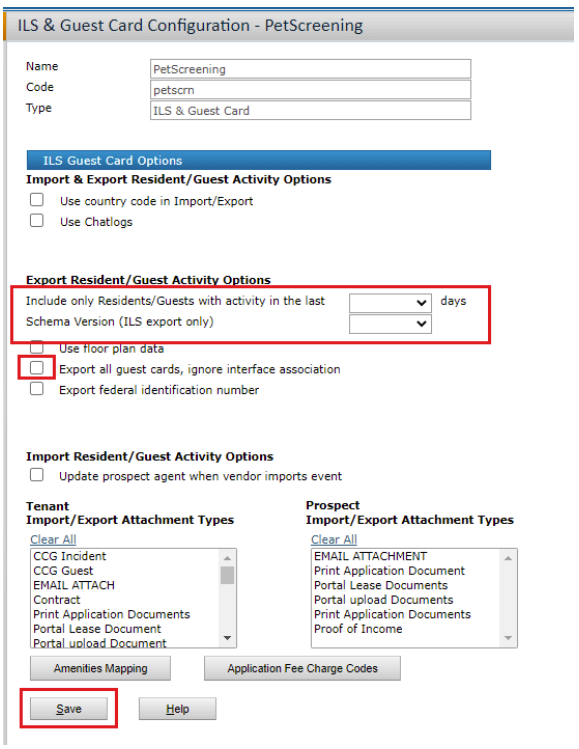
Yardi ILS & Guest Card Configuration - Petscreening
Name: Petscreening
Code: petscrn
Type: ILS & Guest Card
ILS Guest Card Options
Import & Export Resident/ Guest Activity Options
● Use country code in Import/Export - Leave unchecked
● Use Chatlogs - Leave unchecked
Export Resident/ Guest Activity Options
● Include only residents/guests with activity in the last 90 days
○ Once your account is live, change this setting to 7 days
● Schema Version (ILS export only) - 4.0
● Use floor plan data - Leave unchecked
● Export all guest cards, ignore interface association - Check This Box
● Export federal identification number - Leave Unchecked
All other options can be ignored Choose “Save” at the bottom left of the prompt.